Construction scheduling software that is easy to set up, easy to
learn, and easy to use. You could be up and running less than 1 hour
from now. Plan your jobs better, save time, and get organized the easy
way.
The information on this page is outdated. We highly recommend to use the Apache web server with Remote VirtualBoss. We find there be to far fewer complications and the reliability is very high.
Changing Ports within IIS
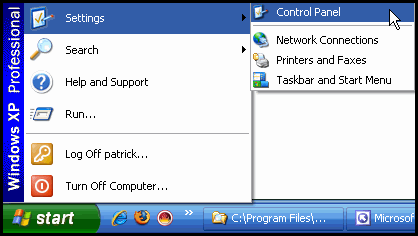
Go to the Control Panel
Select Administrative Tools
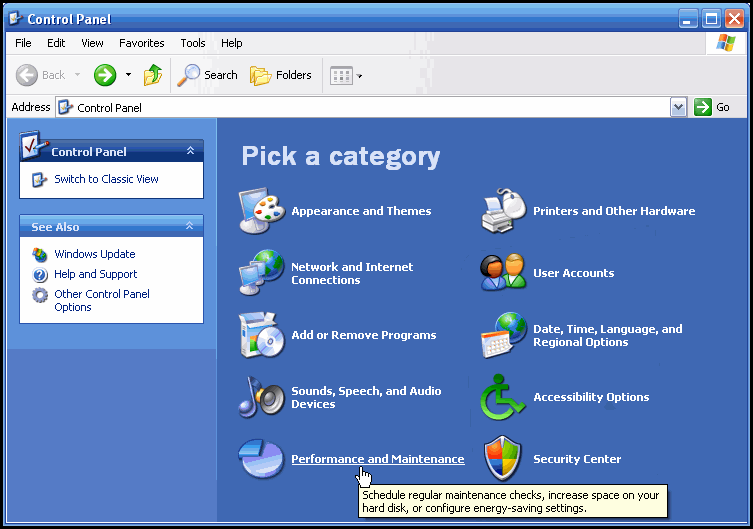
If you are in Category View, you will see a
list that looks like the image below. In this
case, click Performance and Maintenance. Then
click on Administrative Tools.
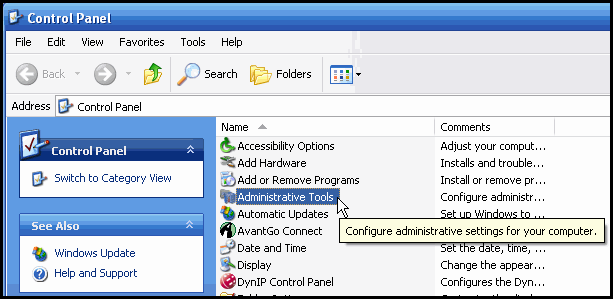
If you are in Classic View, you will see a list that looks like the image
below. In this case, double-click on Administrative
Tools.
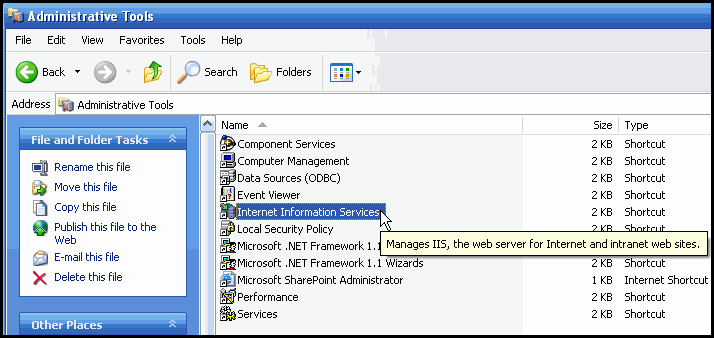
Double-Click Internet Information Services
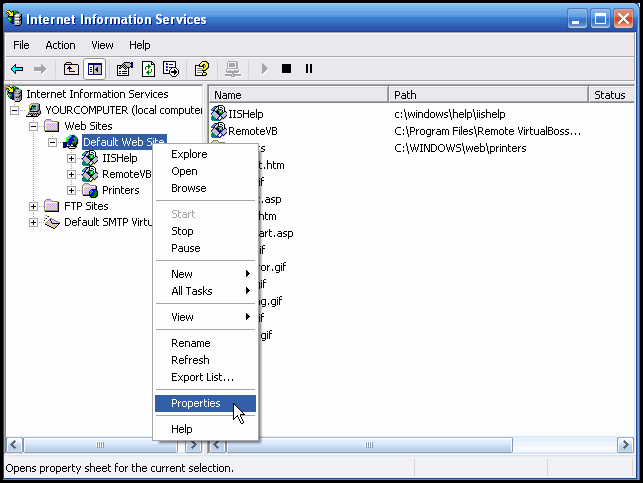
Locate the Default Web Site, right-click
it, and select Properties
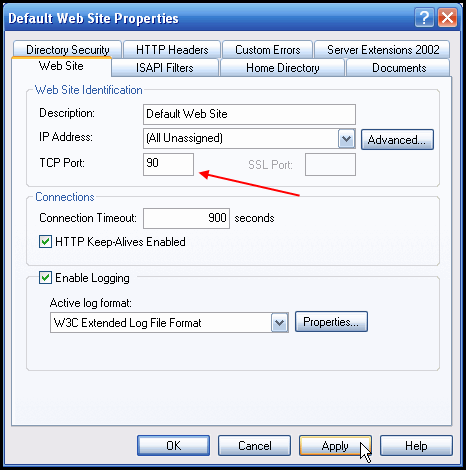
Change the TCP port to port 90, and click
Apply/OK
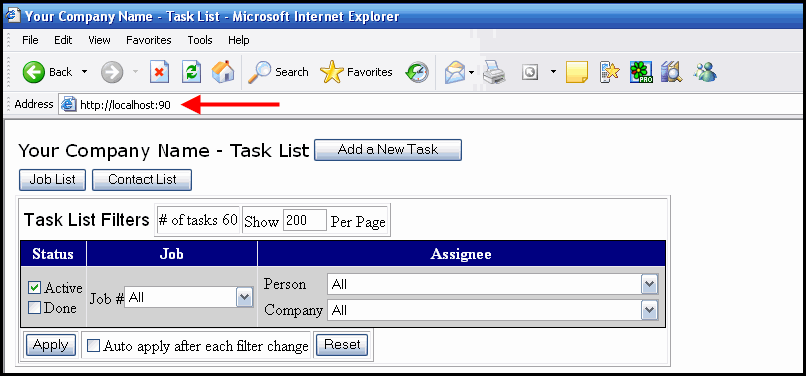
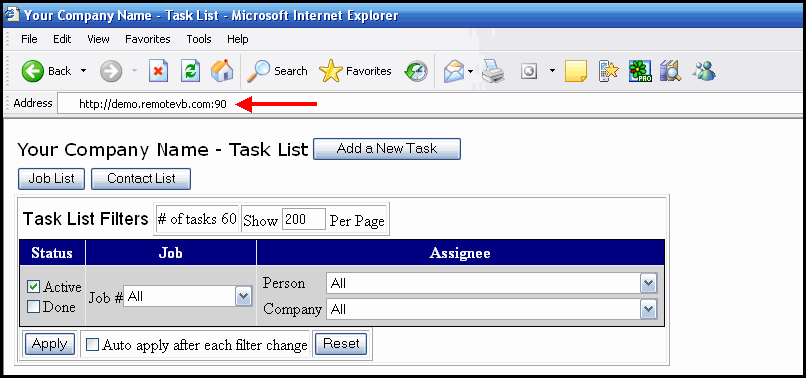
When this is done, you will have
to enter a :90 at the end of the web address you
use to access Remote VirtualBoss